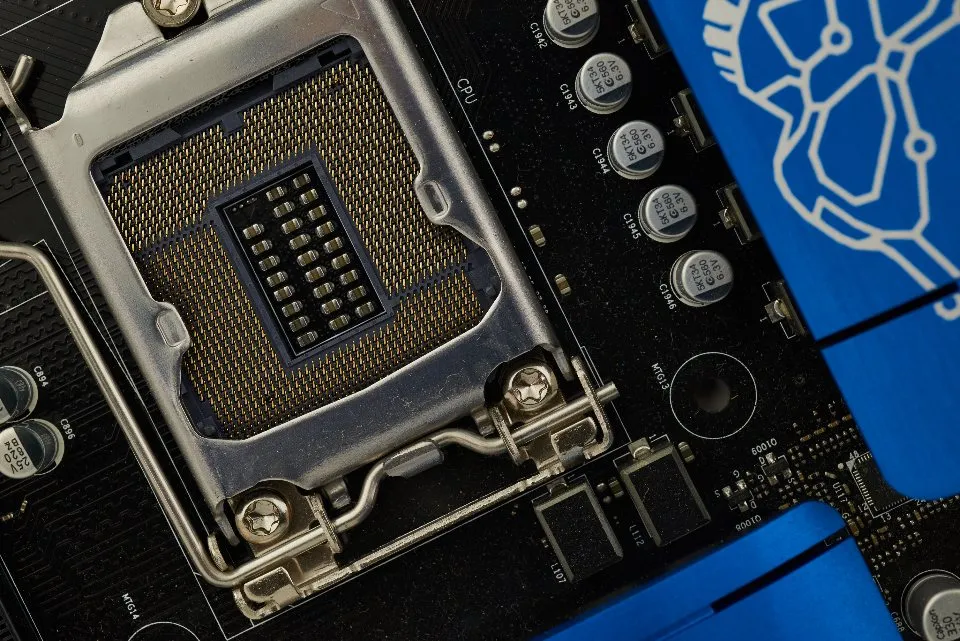
The main B650 vs X870 motherboard difference is connectivity, not speed. X870 boards must have USB4 and a PCIe 5.0 graphics slot plus a PCIe 5.0 M.2 slot, while B650 boards run the graphics slot at PCIe 4.0 and treat PCIe 5.0 as optional. Both use the same AM5 socket, run the same Ryzen 7000, 8000 and 9000 chips, and both let you overclock the CPU and memory.
So the real question is simple: will you use those extra features? This page lays out exactly what each chipset gives you, where the gap matters, and which one fits your build. If you are new to how chipsets work, our motherboard guides cover the basics in plain English.
Key Takeaways
- X870 requires USB4 and PCIe 5.0 for both the graphics card and one M.2 SSD. B650 requires neither.
- Both chipsets offer 36 usable PCIe lanes in total, and the chipset side (SATA and extra USB) is about the same.
- Gaming speed with the same CPU, GPU and RAM is close to identical on either board.
- B650 is the value pick for most gaming builds. X870 makes sense if you want USB4, a PCIe 5.0 SSD, or a longer upgrade runway.
B650 vs X870: the short version
Here is how the two chipsets compare on the specs that actually change your build. The X870 figures come straight from AMD’s AM5 chipset specifications.
| Feature | B650 | X870 |
|---|---|---|
| Launched | October 2022 | September 2024 |
| Graphics slot | PCIe 4.0 (x16 or 2×8) | PCIe 5.0 (x16 or 2×8), required |
| Main M.2 slot from the CPU | PCIe 4.0 on most boards, PCIe 5.0 optional | PCIe 5.0 x4, required |
| USB4 (40Gbps) | Optional, rare | Standard on every board |
| Usable PCIe lanes in total | 36 | 36 |
| CPU overclocking | Yes | Yes |
| Memory overclocking (AMD EXPO) | Yes | Yes |
| Supported CPUs | Ryzen 7000, 8000, 9000 (BIOS update may be needed) | Ryzen 7000, 8000, 9000 |
Notice how short the list of real differences is. Most of what separates these boards lives in three places: the graphics slot, the main SSD slot, and USB4. Everything else depends on the specific board model more than the chipset.
What does the chipset actually change?
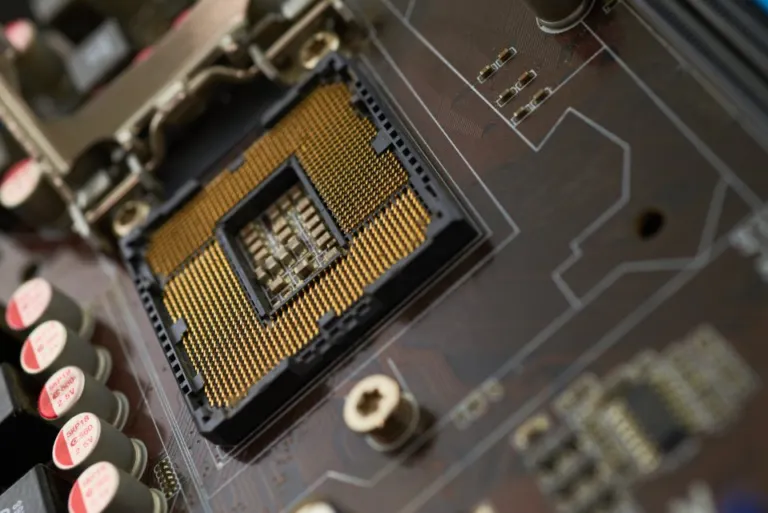
A chipset is the helper chip on the motherboard that adds extra USB ports, SATA ports and PCIe lanes on top of what the CPU provides. On AM5, the CPU does most of the heavy lifting. It drives the graphics slot and the fastest M.2 slots directly, so the chipset name mostly decides which minimum features a board maker has to include.
That is the key idea. AMD sets rules for each chipset. An X870 board must wire the graphics slot and one M.2 slot for PCIe 5.0, and it must include USB4. A B650 board can skip those things to save money, and most of them do.
Under the hood, B650 and X870 both use a single chipset chip, which is why AMD lists both at 36 usable PCIe lanes. The higher-end X870E and X670E use two chipset chips linked together, which is where their extra lanes, USB ports and SATA ports come from.
Does X870 give you more PCIe 5.0?
Yes. X870 guarantees PCIe 5.0 for your graphics card and your main SSD. AMD lists X870 with up to 24 PCIe 5.0 lanes: 16 for graphics, 4 for an M.2 slot, and 4 general purpose lanes. B650 has no required PCIe 5.0 lanes at all. When AMD launched it, the company described B650 as built for mainstream users with “optional PCIe 5.0 support,” as stated in the Ryzen 7000 launch announcement.
PCIe 5.0 for graphics cards
PCIe 5.0 doubles the bandwidth of PCIe 4.0 per lane. A modern graphics card running at PCIe 4.0 x16 still has a lot of room, so in most games you will not see a real change in frame rates between a B650 and an X870 board with the same GPU.
Where the faster slot can help is when a card runs on fewer lanes. If a board splits the graphics slot to x8 (to feed a second slot or an extra M.2 drive), PCIe 5.0 x8 matches the bandwidth of PCIe 4.0 x16. On a PCIe 4.0 board, that same x8 split halves the bandwidth.
PCIe 5.0 for SSDs
This is the more practical gap. A PCIe 5.0 NVMe SSD can read and write data much faster than a PCIe 4.0 drive in sequential transfers, such as copying very large video files. On a B650 board without a PCIe 5.0 M.2 slot, a PCIe 5.0 SSD still works, but it runs at PCIe 4.0 speed.
For gaming and everyday use, a good PCIe 4.0 SSD already loads things quickly, and the extra speed is hard to feel. If you edit large video projects or move huge files every day, the X870’s guaranteed PCIe 5.0 slot is worth more to you. Our memory and storage guides explain how M.2 slots share lanes on AM5 boards.

Is USB4 worth paying for?
USB4 is the biggest feature you get with X870, and every X870 board has it. USB4 runs at up to 40Gbps, double the fastest regular USB port on a B650 board (20Gbps). It uses the USB-C connector, and it can carry display output and fast data on the same cable, depending on how the board maker wires it.
USB4 is useful if you own, or plan to buy, any of these:
- Fast external NVMe SSD enclosures built for 40Gbps
- USB4 or Thunderbolt docks that run several devices from one cable
- Monitors you want to drive through USB-C from the motherboard (check that the board supports display output on its USB4 ports)
- Capture or audio gear that needs high bandwidth
If your USB gear is a keyboard, mouse, headset and the odd flash drive, regular 10Gbps and 20Gbps ports do the job, and B650 has plenty of those. For more on what each port type can do, see our ports and connectivity guides.
One detail worth knowing: the USB4 controller on X870 boards is a separate chip, and on many boards it uses the 4 general purpose CPU lanes. That can mean a second M.2 slot shares bandwidth with USB4, so check the lane sharing table in the board’s manual before you plan your drives.
Is X870 faster than B650 for gaming?
No, not in any meaningful way when the parts are the same. The chipset does not change your CPU’s clock speed, its cache, or how fast your GPU renders frames. A Ryzen 7 9800X3D paired with the same graphics card and memory will perform about the same on a good B650 board as on an X870 board.
What can change performance is the board’s build quality, and that varies by model, not chipset name. Three things matter most:
- Power delivery (VRM): higher-end Ryzen 9 chips draw more power under heavy loads, and a stronger VRM with good heatsinks keeps clocks steady. Our breakdown of 16+2+2 vs 18+2+2 VRM designs explains how much is enough.
- Memory support: stable high DDR5 speeds depend on the board’s memory traces and BIOS. Newer X870 boards tend to have more tuning for Ryzen 9000, but a well-built B650 board with an updated BIOS handles EXPO memory kits well too.
- BIOS updates: both chipsets get regular updates, and keeping the BIOS current matters more on AM5 than the badge on the box.
You can find more motherboard guides on each of these topics in our chipset section, but the short answer stays the same. Spend money on the CPU and GPU first.
What else is different between B650 and X870 boards?
Beyond AMD’s required features, X870 boards are newer, and that shows in the extras board makers add. These are board choices, not chipset rules, so always confirm them on the spec page of the exact model you are looking at.
| Board feature | Typical B650 board | Typical X870 board |
|---|---|---|
| Wi-Fi | Wi-Fi 6 or 6E on Wi-Fi models | Wi-Fi 7 is common on Wi-Fi models |
| Ethernet | 1GbE or 2.5GbE | 2.5GbE or faster |
| Ryzen 9000 support out of the box | Often needs a BIOS update on older stock | Ready from launch |
| Tool-free extras (quick-release GPU latch, screwless M.2) | On some newer revisions | Common |
| Price | Lower | Higher |
Wi-Fi deserves a quick note because it often decides which board people pick. Wi-Fi 7 needs a Wi-Fi 7 router to pay off, so read our Wi-Fi 6E vs Wi-Fi 7 motherboard comparison before you count it as a reason to upgrade.
The chipset-level SATA and extra USB counts are about the same on both. AMD lists X870 with up to 4 SATA ports, 6 USB 10Gbps ports and 1 USB 20Gbps port from the chipset, and B650 uses the same single chipset chip, so you won’t gain storage ports by moving up.
Does a B650 board support Ryzen 9000?
Yes. AMD states that all AM5 boards with 600 and 800 series chipsets support Ryzen 7000, 8000 and 9000 processors, though a BIOS update may be needed. B650 is a 600 series chipset, so a Ryzen 9000 chip drops right in once the BIOS is current.
If you buy a B650 board that has been sitting in stock for a while, look for a BIOS Flashback button (names vary by brand). It lets you update the BIOS from a USB stick without a CPU installed, which saves you from needing an older chip just to boot. Our motherboard guides walk through BIOS updates step by step if you have never done one.
Where do B850 and X870E fit in?
Two other chipsets sit close to this comparison, and they can be a better match than either B650 or X870.
- B850 is the newer B-series chipset. It requires a PCIe 5.0 M.2 slot but keeps the graphics slot at PCIe 4.0, and USB4 stays optional. Think of it as B650 with a guaranteed PCIe 5.0 SSD slot.
- X870E adds a second chipset chip to everything X870 offers. That raises the total to 44 usable PCIe lanes and doubles the chipset USB and SATA counts, which helps if you run lots of drives and expansion cards.
Our chipset guides compare every AM5 option, but for this pairing the order is simple. B650 is the cheapest of the three mainstream picks, B850 adds a PCIe 5.0 SSD slot, and X870 adds PCIe 5.0 graphics and USB4 on top.
Which should you buy? Verdict by use case
Pick based on what you will plug in over the next few years, not on the chipset name. Here is how it breaks down.
| Your build | Better pick | Why |
|---|---|---|
| Budget or mid-range gaming PC | B650 | Same gaming speed, more money left for the GPU |
| High-end gaming with a Ryzen 7 X3D chip | B650 or X870 | A quality B650 is enough; X870 if you want USB4 and newer extras |
| Video editing or large file work | X870 | Guaranteed PCIe 5.0 SSD slot and 40Gbps USB4 for external drives |
| Laptop-style dock or USB-C monitor setup | X870 | USB4 is standard on every board |
| Plan to keep the board for many CPU upgrades | X870 | PCIe 5.0 slots keep up with future GPUs and SSDs |
| Small form factor build on a tight budget | B650 | More low-cost Mini-ITX and Micro-ATX options |
Tip: compare a mid-range X870 board with an upper-tier B650 board at the same price. The B650 often has a stronger VRM and more M.2 slots, while the X870 brings USB4 and PCIe 5.0. Decide which of those you will actually use.
If you are still unsure, ask yourself one question: do you own or plan to buy a USB4 device or a PCIe 5.0 SSD? If the answer is no, B650 is the smarter buy. If it is yes, X870 is worth the extra cost.
Conclusion
B650 and X870 run the same Ryzen chips at the same speed, so the choice comes down to features. X870 guarantees USB4, a PCIe 5.0 graphics slot and a PCIe 5.0 M.2 slot. B650 drops those to keep prices down. For most gaming builds, a well-built B650 board is the better value, and the savings can go toward a faster GPU. Choose X870 if you need 40Gbps USB4, a fast PCIe 5.0 SSD, or the longest upgrade path.
Frequently Asked Questions
Is X870 better than B650?
X870 has more features, not more speed. It adds required USB4 and PCIe 5.0 for the graphics card and main SSD. With the same CPU, GPU and memory, gaming performance is about the same, so B650 is often the better value for gamers.
Can I use a PCIe 5.0 graphics card on a B650 motherboard?
Yes. PCIe is backward compatible, so a PCIe 5.0 graphics card works in a B650 board’s PCIe 4.0 x16 slot. It runs at PCIe 4.0 speed, which still gives a modern card plenty of bandwidth for gaming.
Do B650 and X870 use the same CPU socket?
Yes. Both use AMD’s AM5 socket and DDR5 memory. Any Ryzen 7000, 8000 or 9000 desktop processor works in either board, though an older B650 board may need a BIOS update before it recognizes a Ryzen 9000 chip.
Is it worth upgrading from B650 to X870?
Usually not. Swapping boards gives you USB4 and PCIe 5.0 slots but no extra gaming speed. It only makes sense if you need USB4 devices or a PCIe 5.0 SSD at full speed. Otherwise, put the money toward a CPU or GPU upgrade.
Does B650 support overclocking?
Yes. B650 supports both Ryzen CPU overclocking and DDR5 memory overclocking with AMD EXPO profiles, the same as X870. How far you can push depends on the board’s VRM, cooling and BIOS rather than the chipset name.